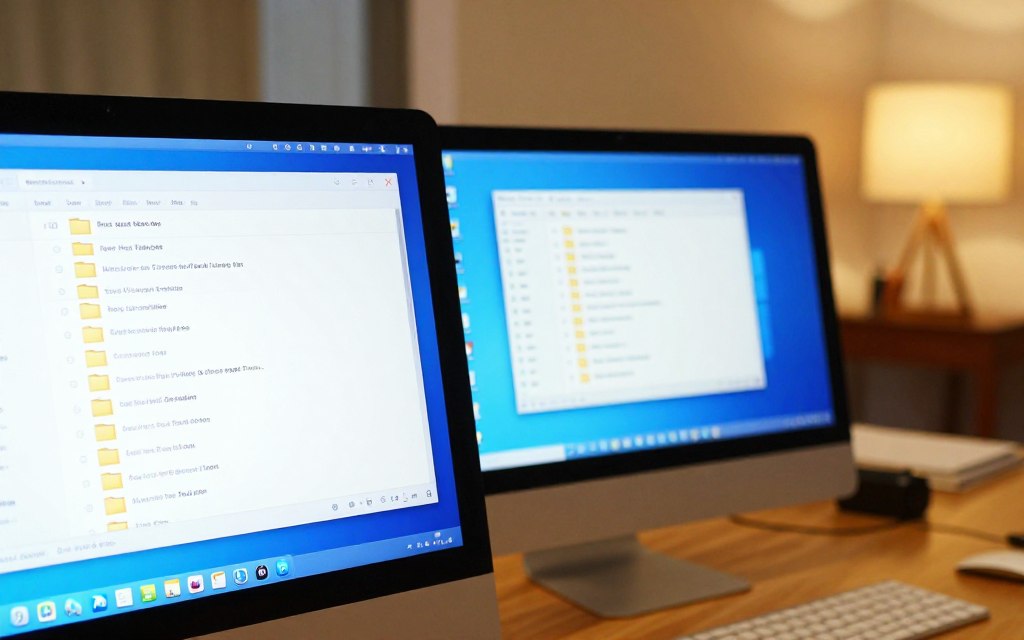
You may need a document saved on a second computer at home. To learn how to access a computer on your home network, start with its shared folder. Local file access opens files, while remote control lets you use another device’s screen.
Both devices must use the same home network for local sharing. SMB means Server Message Block, a network protocol that lets devices share files and printers. The steps below help you make a folder available, open it from another computer, and check basic security.
Sharing a folder does not give you control of the host computer. It gives you access only to files and actions allowed by its owner. That distinction matters when you choose permissions or need to reach a computer away from home.
First, check that both devices can communicate on the same network. Then prepare the host computer and use the client computer to open the shared folder.
Local sharing works when both devices use the same home network.
Share one selected folder, not an entire drive.
Set permissions to allow only the access people need.
Windows and Mac computers can share files through SMB.
Remote screen control needs a separate, secure setup.
Connect Both Computers to the Same Home Network
A laptop on guest Wi-Fi may not find a desktop on the main network. Both devices need the same local network, even if one uses Wi-Fi and the other uses Ethernet.
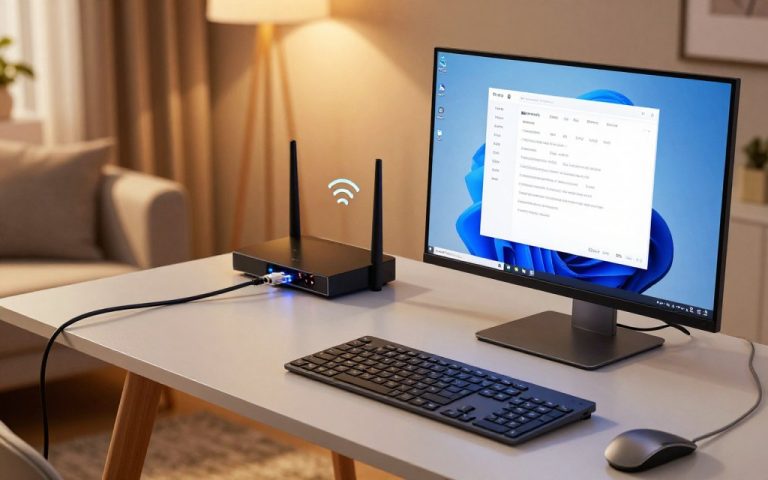
A modem connects your home to an internet service. A router connects devices and sends information between them and the internet. For local file sharing, connect both computers to the same router network. A basic local area network lets devices exchange files and share resources.
Connect both computers to the same local network before setting up file sharing.
Use Ethernet or Wi-Fi
Ethernet uses a cable to connect a computer to the router. Wi-Fi connects devices without a cable, so it allows more movement around the home.
Connection type
How it connects
Cable needed
Mobility
Ethernet
Wired link to router
Yes
Limited by cable
Wi-Fi
Wireless router link
No
Room to room
Mixed Ethernet and Wi-Fi
One wired, one wireless
One cable
Varies by device
A mix of Ethernet and Wi-Fi can work if both connections reach the same local network. DHCP lets the router assign network address settings automatically. See Microsoft’s wireless network setup guide for Windows Wi-Fi basics.
Check the Router and Network Each Device Uses
A guest Wi-Fi network may block contact with devices on the main network. A second router can also place computers on separate networks, even when both have internet access.
Connect both devices to the same router network.
Avoid guest Wi-Fi for either device.
Confirm the router is not separating the devices.
Once both devices can communicate on the same network, prepare the computer that will host the shared folder.
Prepare Windows for File Sharing
Windows must allow discovery and sharing on the host computer before another device can open its folder. Set the profile to Private only on a trusted home network.
A Private profile allows more local connections than a Public profile. Network discovery lets a Windows computer find, and be found by, other devices. Turn on Network discovery and File and printer sharing in advanced sharing settings.
Set the Network Profile and Turn On Discovery
Open Windows Settings and check the active network’s profile. Choose Private only if you trust the network and its users. Menu names and Control Panel paths can vary by Windows version.
Then open advanced sharing settings and enable Network discovery and File and printer sharing for the Private profile. These settings let local computers find each other and share resources.
Share a Folder with the Right Permissions
In File Explorer, right-click the folder you want to share and open Properties. Use the Sharing settings to select users and permissions. Share only the folder needed, rather than a whole drive or user folder.
Choose read-only access if people only need to open or copy files. Allow changes only when they must add, edit, or delete files. A client computer may ask for the host account’s username and password.
Confirm the host computer uses a trusted Private profile.
Enable Network discovery and File and printer sharing.
Share the chosen folder with suitable permissions.
After the host folder is shared, identify the host and connect to it from the client computer.
How to Access Computer on Home Network From Windows
In File Explorer, enter the host computer’s name and share name in the address bar, using \\computer-name\share-name. Use the host’s IPv4 address if its computer name does not work.
On the host, open Command Prompt and type hostname to see its computer name. Type ipconfig to find its network details, including the IPv4 address. Replace the example names in the path with the actual computer and shared folder names.
Windows 10 and Windows 11 both support this File Explorer method, though menu layouts can differ. When prompted, enter a username and password for an account on the host. A Windows Hello PIN may not work as the account password.
If you open the same folder often, you can map it as a network drive. That gives the share a drive letter in File Explorer. Mapping is optional and does not change the folder’s permissions.
For how to access computer on home network in Windows 11 or Windows 10, use the host name first, then try its address if needed. If the host is a Mac, use its SMB share instead of assuming Windows folder-sharing steps apply.
Share Files Between a Mac and a Windows PC
Windows can open a Mac folder when File Sharing and SMB are enabled on the Mac. SMB connects the two computers for local file access without giving Windows control of the Mac’s screen.
To connect a MacBook to a Windows PC for file access, share a folder from the Mac, then open that share from Windows. Use an account that the Mac has allowed to access the folder.
Share a Folder on macOS with SMB
On the Mac, open System Settings, then find General and Sharing. Turn on File Sharing and add only the folder you want to share. Select which users may access it, and choose their allowed level of access.
Make sure SMB sharing is enabled for Windows access. The Mac displays a network name or address that the Windows computer can use. Menu labels can vary by macOS version, so look for File Sharing and its user settings.
Open the Mac Share from Windows
On Windows, open File Explorer and enter the Mac’s network address in this form: \\Mac-name\share-name. Replace the sample name and share with the values for your Mac.
Sign in with the account allowed to use the share. Connecting to a Mac server from Windows means opening the Mac’s shared files over the local network. It does not start a remote-control session.
The phrase how to access a Mac SMB share from Windows describes this same file-sharing process. It also covers how to access a shared folder on a Mac from Windows 10. If the share does not appear or credentials fail, check common connection issues before changing security settings.
Fix Common Home Network Access Problems
A computer may appear in File Explorer but still refuse the connection. Check the network path, account, and permissions before changing broader security settings.
A guest Wi-Fi connection or second router may separate the computers. Disabled discovery can hide a Windows host, while a misspelled name can point to the wrong place. Try the host’s IP address to separate a name problem from a wider connection issue.
Access a Mac from Windows 11 When It Does Not Appear
For Windows access to a Mac shared folder, confirm both devices use the same home network. Enter the Mac’s displayed network address directly in File Explorer. Check that the Mac is on, File Sharing remains enabled, and the chosen folder still appears in its share list.
If the Mac name fails, try its network address instead. A working address suggests a name-resolution issue. If neither works, check the router connection, firewall, and sharing settings on both computers.
Check Names, Permissions, and Firewall Settings
A rejected password may mean you entered the wrong Mac or Windows account. Use the host account credentials, not a PIN, and confirm that account has permission for the folder. Firewall settings can also block local sharing, so allow trusted local file sharing without turning off the firewall.
Symptom
Check
Next step
Host missing
Network and discovery
Use same router; enable discovery
Password rejected
Host account credentials
Use account password; check access
Mac share missing
SMB and Mac share list
Enter Mac address in File Explorer
Connection blocked
Firewall and permissions
Allow local sharing for trusted network
Check the host computer’s name carefully, including spaces and hyphens. The hostname command shows the Windows computer name, while ipconfig lists its IPv4 address. Use these details to test the path from the client computer.
For more checks, use basic network troubleshooting commands such as ping or ipconfig. Once local access works, review who has permission to use the share and what the network exposes.
Protect Shared Files and Accounts
Folder permissions and account credentials determine who can use a shared folder. Give access only to people who need it, and limit them to the actions their work requires.
Share selected folders and, where possible, allow named accounts rather than broad groups. Strong, unique passwords protect those accounts. Allowing Everyone access is convenient, but it broadens who may use the share.
Limit Access to the People Who Need It
Remove access when someone no longer needs the files. Change default router credentials so they do not remain easy to guess. Use WPA3 Wi-Fi security when your router and devices support it.
Keep device firewalls enabled. A firewall can help block unauthorized access and malicious software. Microsoft’s wireless network guide also covers router credentials and Wi-Fi security.
Secure the Network and Remote-Access Settings
The two most common reasons hackers can access a system are stolen or reused credentials and vulnerable or unnecessarily exposed remote-access services. Being connected to Wi-Fi alone does not prove someone is controlling your device.
Review remote-access tools you have installed and keep only services you use. This is separate from ordinary local file sharing, which does not let another person control your screen. Learn how remote access differs from file access before enabling control features.
Local sharing normally works only on the home network. Reaching a computer from work needs a separate, deliberate remote-access setup.
Access Your Home Computer Remotely
Opening a shared folder is not the same as controlling a home computer from work. Local file sharing usually works only on your home network, while remote access needs a separate, deliberate setup.
A VPN can connect you securely to the home network, followed by a supported remote desktop connection. Windows Home cannot host Microsoft’s built-in Remote Desktop session. Do not expose SMB or Remote Desktop directly to the internet through router port forwarding.
Keep SMB and Remote Desktop closed to direct internet traffic. Use a secure remote-access method instead.
Choose a supported remote-access method for your devices.
Secure it with a VPN or trusted solution and strong sign-in.
Test access without weakening the router’s protections.
Remote-control tools can expose files and system settings, so allow access only to trusted accounts. Test the least-permissive method that meets your need.
Conclusion
A correctly shared folder is usually the simplest way to move files between devices at home. Both computers need the same home network, and the host should share only the folder you need.
Start by testing access with one non-sensitive folder before moving important files. That small check can reveal a wrong account or permission without risking private documents.
Test the selected folder from the client computer, then confirm its permissions work as intended.
FAQ
How do I connect my computer to a network?
Connect by Wi-Fi or Ethernet to the same router network as the other device. Wi-Fi avoids a cable, while Ethernet provides a wired link to the router. Avoid guest Wi-Fi when you need local sharing, since it may separate devices from the main network. Both computers can use different connection types if they reach the same local network.
How do I connect my MacBook to a Windows PC?
For file access, enable SMB File Sharing on the Mac and open its shared folder from Windows. Add only the folder you need, then allow the right Mac account to use it. Enter the Mac’s network name or address in File Explorer. Controlling the Mac’s screen is a separate task and needs a remote-control tool.
How can I remotely access my home computer from work?
Use a deliberately configured remote-access solution, such as a VPN with a supported remote desktop connection. A local shared folder usually works only when both devices use the home network. Do not expose SMB or Remote Desktop directly to the internet through router port forwarding. Windows Home cannot host Microsoft’s built-in Remote Desktop session.
Can someone access my PC remotely without me knowing?
Yes, remote access is possible if someone has compromised credentials, installed remote-access software, or added malware. An internet connection alone does not mean another person can control your PC. Review unfamiliar tools and account activity, then use a trusted device to change passwords if you find signs of unwanted access.
How do I tell if someone else is accessing my computer?
Check for unfamiliar remote-access tools, unexpected account sign-ins, and active sessions. One unusual symptom alone does not confirm someone has access. Look for several changes you cannot explain, such as a new remote app and a sign-in at an unfamiliar time. Run a security scan if the signs point to unwanted software.
How does a scammer get access to your computer?
Scammers may persuade someone to install remote-support software or reveal account credentials or an access code. They can pose as technical support and ask the person to approve a connection. Never share a one-time code or grant remote access because an unexpected caller asks. End the call and contact the company through a known number.
What are the signs your computer has been hacked?
Unexpected sign-ins, unfamiliar software, or changed settings can be warning signs, but they do not prove a hack by themselves. A slow computer or odd pop-up may have another cause. Check account activity and installed apps, then run a security scan. If you find unfamiliar access, change passwords from a trusted device.
How do I stop someone from remotely accessing my computer?
If access appears active, disconnect the computer from the network. Disable unfamiliar remote tools, change passwords from a trusted device, and run a security scan. Also review account sign-ins and remove remote access you do not use. If you need remote access later, set up a trusted method with strong sign-in instead of opening router ports.
Welcome to our guide on connecting your computer to a mobile device. We’ll cover setting up a mobile hotspot, tethering, and using Wi-Fi or Bluetooth. This will help you stay connected on-the-go. Mobile technology has made it easy to access the internet anywhere. You can use your mobile device as a hotspot. Then, connect your…
A failed ping can mean the target is unreachable, or simply that it is not answering ping requests. A ping request, called an ICMP echo request, is a small network message that asks a device to send a reply. If you can’t ping a Windows 10 computer on the network, the problem may be filtering,…
Modern digital communication relies on high-speed internet to function efficiently. The FCC recently updated its standards, now defining broadband as connections with 100 Mbps download and 20 Mbps upload speeds. This shift reflects growing demands for faster data transmission. Mobile devices dominate global usage, with 96.2% of users accessing online services through smartphones. Over 5.5…
You may need a document saved on another PC, or you may need to control its screen from your desk. How to access another computer on your network depends on which task you have and whether both PCs use the same local network. Those are different kinds of access, with different settings and security needs….
Computer networks are complex systems that connect devices for data sharing. They’ve changed how we communicate since the 1950s. Originally, these networks were created for military use1. At its heart, a computer network lets devices swap info using standard protocols. The TCP/IP protocol suite is the backbone of digital communication1. This discussion overlaps with cisco…
Modern businesses face growing cybersecurity threats, making network access control essential. This security method ensures only authorized users and compliant devices connect to corporate systems. By enforcing strict policies, NAC minimizes risks from unauthorized access. With the rise of BYOD and IoT, managing diverse endpoints becomes complex. Automated network security solutions like NAC streamline access…